Install & first-boot setup
From a downloaded image to a working appliance in about ten minutes. The only tool you need is the console.
1 · Get the image
Download the current release from your innovexus.io account and verify the SHA-256 checksum shown on the download page. The same account carries your organization’s activation code (Dashboard → Appliance Activation) — you will want it handy for step 3.
$ sha256sum innovexus-appliance-v2026.08.25.ova
3a1f…<must match the checksum on the downloads page>- OVA — import into VMware (ESXi, Workstation, Fusion) or VirtualBox. Recommended minimum: 4 vCPU, 8 GB RAM, 150 GB thin-provisioned disk.
- ISO — boot it on bare metal or a custom VM. The installer is fully automated; it wipes the target disk and reboots into the same first-boot experience as the OVA.
2 · First boot: the setup wizard
Open the appliance console. There is no “Linux login” — the first thing you see is the Innovexus setup wizard. It asks, in order:
| Step | What it asks | Notes |
|---|---|---|
| 0 — Administrator account | A password for the admin CLI account, then it prints your
recovery key. |
Images ship with no passwords at all. Record the recovery key now — it is shown once and is the only way back in if the admin password is ever lost. See Recovery. |
| 1 — Network | DHCP (default) or a static IP, gateway, DNS and search domain. | The appliance works out its own address at runtime; only pick static if your site requires it. |
| 2 — Time & NTP | NTP servers (blank = system/DHCP default) and the timezone. | Asked before the certificate step on purpose — certificates minted on a wrong clock can be invalid. See Time, NTP & DNS. |
| 3 — FQDN | The DNS name administrators will browse to, e.g.
innovexus.example.com. |
Becomes the WebAuthn RP ID and the certificate subject. An IP
address is not accepted, but you may leave it blank to continue —
the appliance is then reached by IP, and passkey login stays disabled
until you set a hostname later (configure hostname).
(why passkeys need a DNS name) |
| 4 — Name resolution | Verifies the FQDN resolves, and to this appliance. | If DNS isn’t published yet you can continue, but browsers must be able to resolve the name before anyone can log in. |
| 5 — Advertised address | Only behind NAT/reverse proxy: the address managed devices dial. | Leave blank to keep live detection (correct for most sites). |
| 6 — TLS certificate | selfsigned (default), import, acme
or none. |
The default generates a proper appliance-signed chain and prints the root CA fingerprint. See TLS & PKI. |
| 7–9 — Verify & apply | Nothing — the wizard proves every answer works, then starts the web interface. | If a check fails, the wizard tells you what and re-runs at next boot with your answers remembered. |
| 10 — Innovexus activation (optional) | Your organization’s activation code (IVX-…),
blank to skip. |
Enrolls the appliance for CVE/KEV and threat-intelligence feed data — see the next section. Skipping is fine: the same field is in the web UI under Settings → Software Updates. |
When the wizard finishes, the console shows the branded login banner with your web address and the appliance’s live IP:
  Innovexus Appliance
  -------------------
  Web UI:  https://innovexus.example.com/   (this appliance: 192.0.2.10)
  Console: log in as 'admin' for the appliance CLI.
           Lost the admin password? log in as 'recover' with your recovery key.
3 · Activate the appliance (feed data)
The Innovexus headend delivers CVE and KEV catalogues, threat-IP feeds and update notices only to enrolled appliances. Enrollment takes one code, typed once — no keys or files to handle:
- Sign in at innovexus.io → Dashboard → Appliance Activation. Your organization’s first activation code is already waiting there; organization admins can issue more (one per appliance).
- Enter the code at the wizard’s activation prompt — or any time later in the web UI under Settings → Software Updates → Activation.
- The appliance enrolls itself: it is bound to your organization, feed access is verified on the spot, and it appears on the same dashboard page under Enrolled appliances.
4 · First visit to the web UI
- If you chose
selfsigned, install the appliance root CA on your workstation first — the wizard printed its location and SHA-256 fingerprint, and it is downloadable under ADMIN → PKI → Trusted Certificate Store. Without it the browser shows a warning and passkey login cannot work at all (details). - Browse to
https://<your-fqdn>/. The first visit creates the first web administrator — a separate account from the CLIadmin. - Register a passkey or security key for that account while you are at it — and note that web admins have their own break-glass path if a password or token is ever lost.
admin (console/SSH) manages the appliance itself; web administrators
manage the product. Neither can be used to log in to the other, and each has its
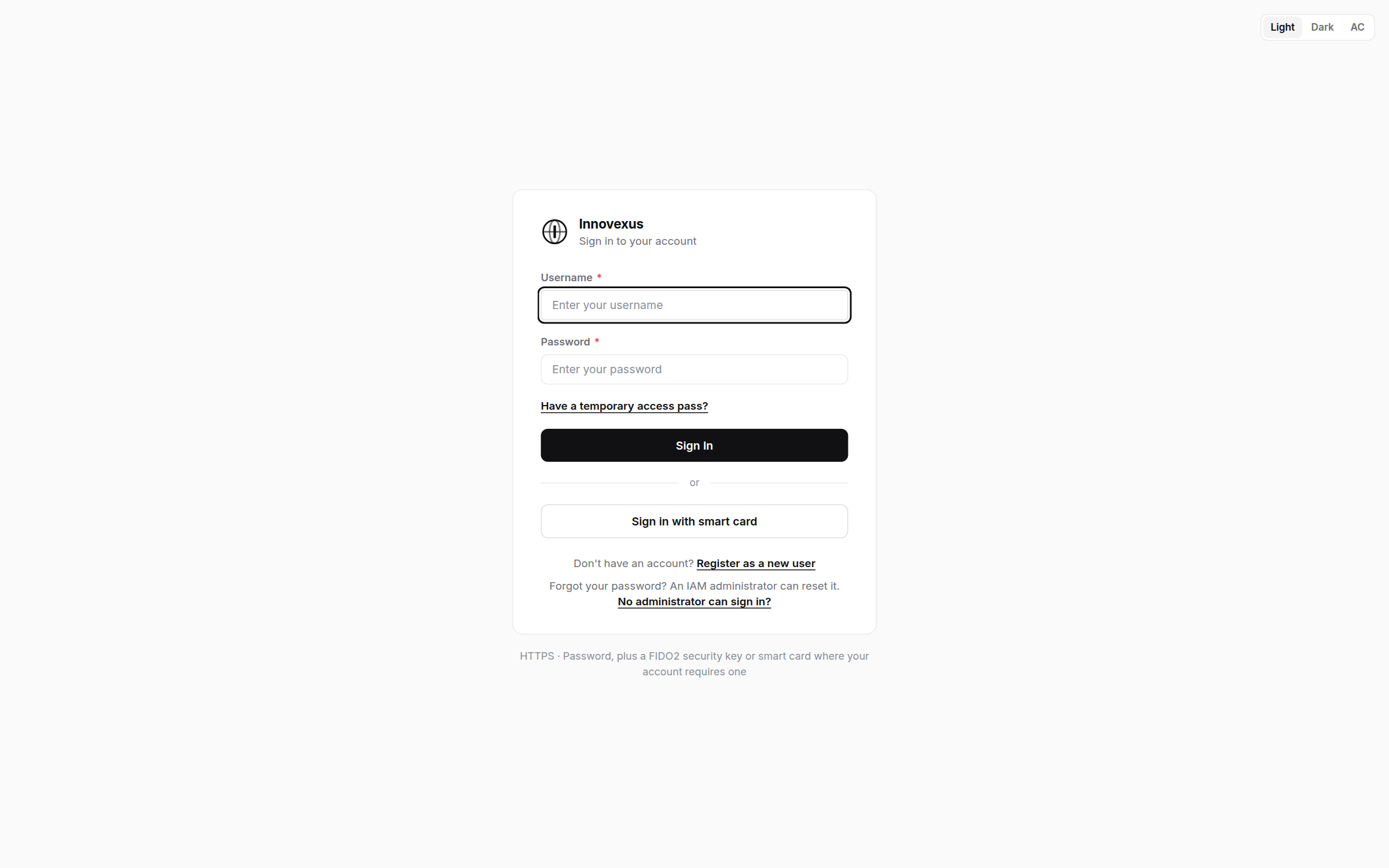
own recovery path — see Recovery & break-glass.5 · Initial configuration in the web UI
You sign in to a working but empty platform. The console is organized in three workspaces — NOC, SOC and ADMIN (how navigation works) — and a new deployment is configured in this order:
- ADMIN — accounts and roles. Create your fellow administrators and operators, give each their workspaces (NOC / SOC / ADMIN) and roles, and require a second factor where policy says so. Connect AD / LDAP if you have a directory. Admin workspace guide →
- ADMIN — the credential vault. Enter the device credentials the platform will use, so device passwords live in one audited, rotating place. Vault →
- NOC — devices and telemetry. Discover or add your network devices, organize them into device groups, and point syslog / SNMP / flows at the appliance. NOC workspace guide →
- SOC — feeds and endpoints. Verify the intelligence feeds are syncing, then install the Bridge Agent on the endpoints you want posture from. SOC workspace guide →
- Optional — AAA. When you are ready to put the appliance in the authentication path (802.1X, MAB, TACACS+ device administration), the device-side snippets are in the NOC guide and the server side in the Admin guide.
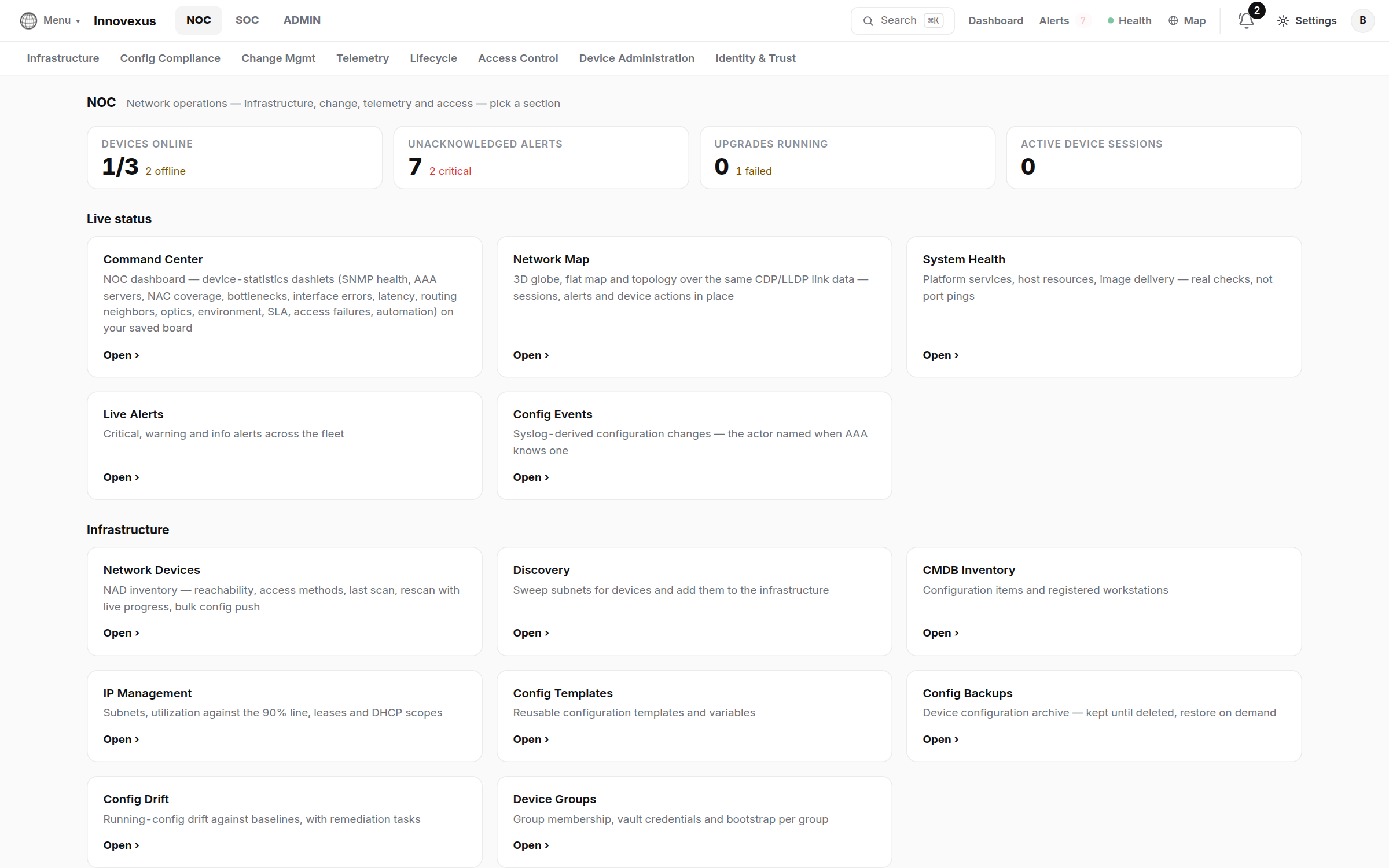
⌘K and type
what you are looking for.Unattended installs
Every wizard answer can be pre-seeded in
/var/lib/innovexus/setup.conf (e.g. from a kickstart or golden
config). Keys that are present are not prompted for; with no console attached the
wizard applies seeded answers non-interactively and refuses to guess missing
required ones.
ADMIN_PASSWORD=<initial CLI password — applied once, never stored>
NET_MODE=dhcp
NTP_SERVERS=ntp1.corp.example ntp2.corp.example
TIMEZONE=America/New_York
FQDN=innovexus.example.com
TLS_MODE=selfsigned
ACTIVATION_CODE=IVX-<your organization’s activation code — optional>
After setup: where things are managed
| Task | Where |
|---|---|
| All product features, users, policies | Web UI |
| Service control, logs, network identity, certificate | CLI (show /
configure / application) |
| NTP, DNS override, timezone | Either — CLI configure ntp or web UI
Settings → System (details) |
| Password recovery | Console only (Recovery) |
| Activation, feed enrollment, re-enrollment | Web UI Settings → Software Updates; codes live in your innovexus.io dashboard |