SOC workspace
Security operations: what is exploitable, what is on the endpoints, who is on the devices — and the intelligence feeds that keep those answers current. Set it up in this order and each step feeds the next.
1 · Verify the intelligence feeds
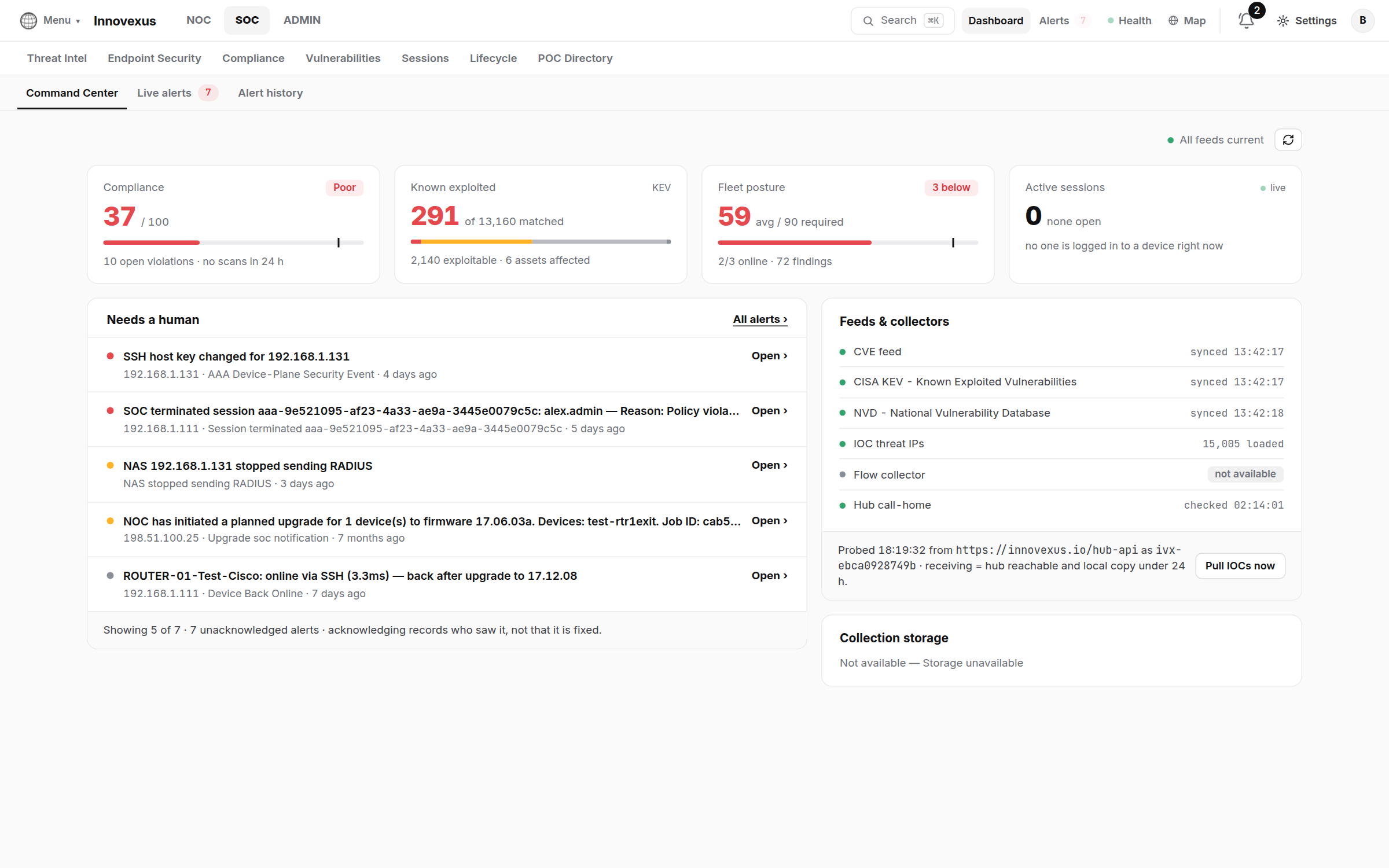
The appliance receives its intelligence from the innovexus.io hub by outbound HTTPS (“call-home”) — nothing inbound to open. On the SOC Dashboard’s Feeds & collectors card, each source should read synced / loaded:
| Feed | What it drives |
|---|---|
| NVD CVE catalog | The CVE database and CVSS scoring behind the vulnerability pages. |
| CISA KEV | The known-exploited queue — the “act first” list. |
| IOC threat IPs | Matched against collected flow telemetry. |
| Hub call-home | Release and agent update notices, feed delivery. |
If a feed is stale, Pull IOCs now forces a fetch; delivery details and keys live in Settings → General → Feeds & keys. A fleet that cannot reach the internet can still receive feeds through the hub mirror — see the proxy settings under Settings → Updates.
2 · Work the vulnerability queue
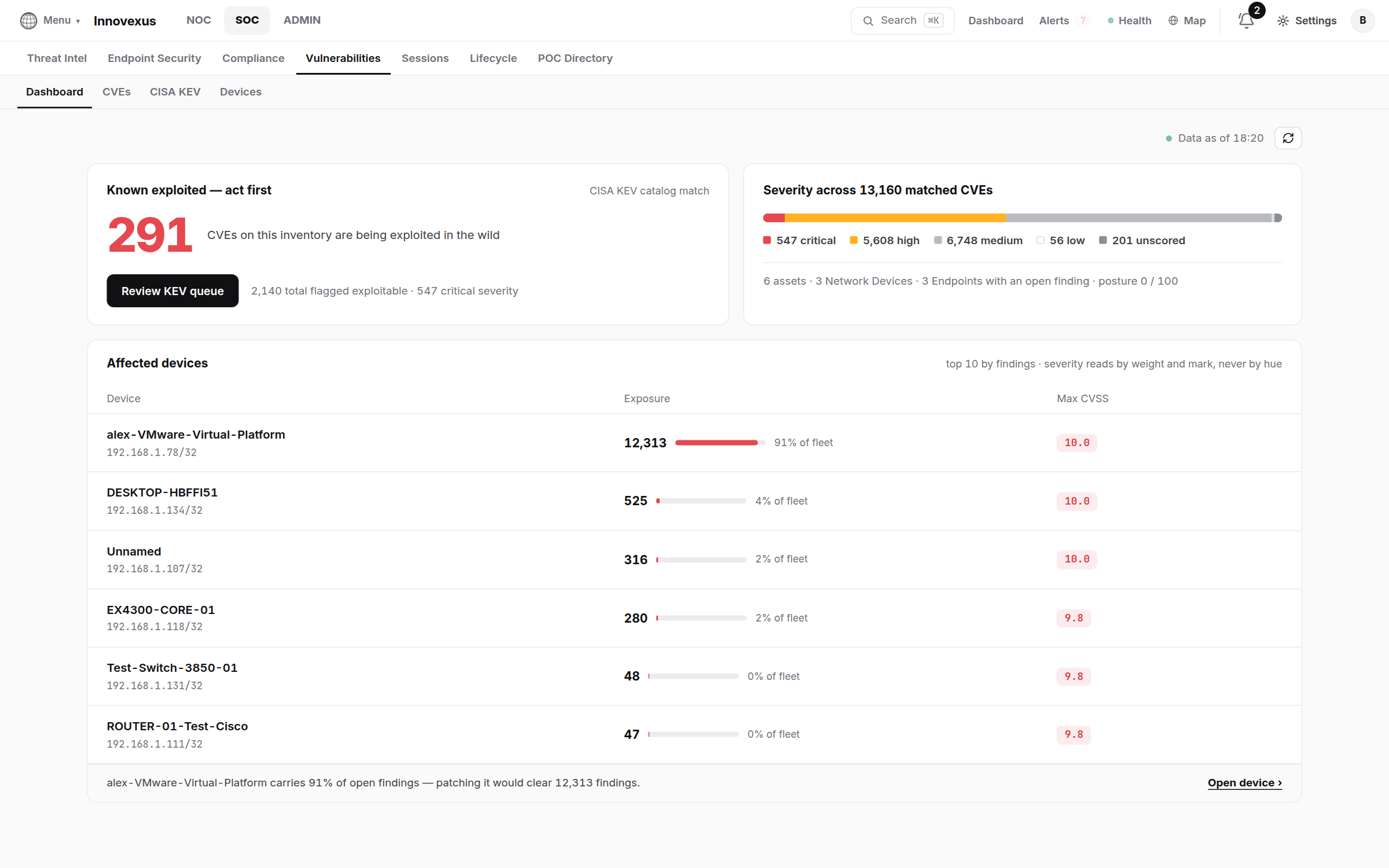
The workflow, left to right:
- Review KEV queue — CVEs on your inventory that are being exploited in the wild. This list is short on purpose; clear it first.
- Affected Devices — exposure per device; one box usually carries most of the findings, and patching it clears them all at once.
- CVE Database / CISA KEV — the full searchable catalogs when you need to chase a specific advisory.
Matching runs automatically against the device and endpoint inventory after every feed sync — there is nothing to schedule.
3 · Endpoint security: install the Bridge Agent
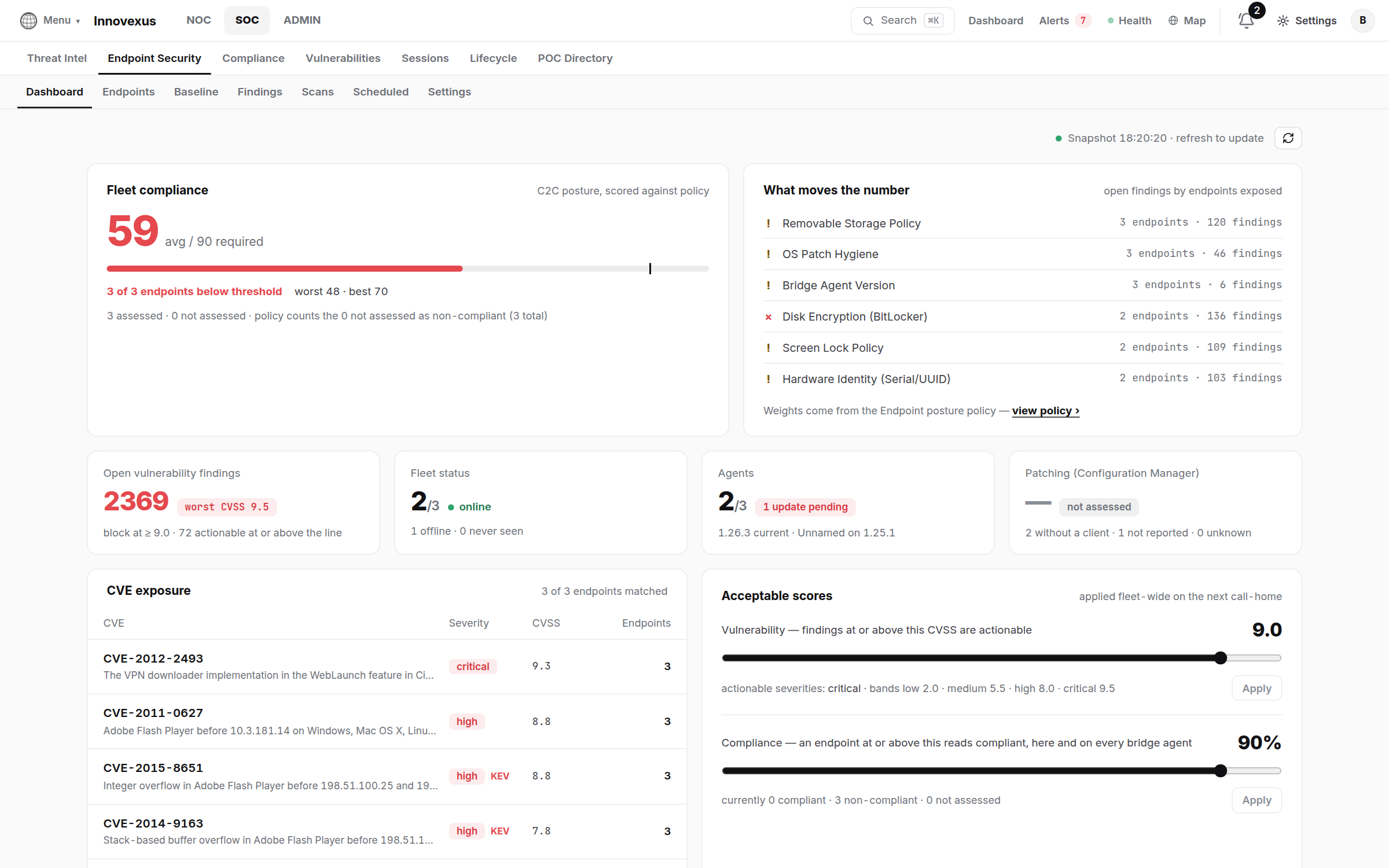
- Download the installer for Windows or Linux from the appliance (the install link is minted per organization — Endpoint Security → Endpoints → Add).
- Install it on the endpoint; the agent enrolls over HTTPS to the appliance, appears under Endpoints, and keeps itself registered. How agents are updated fleet-wide is its own page: Bridge Agent updates.
- Define Baselines — per-OS bubbles of expected posture (services, firewall, patch level…); each endpoint reports conformance to its bubble.
- Run or schedule Scans; triage what they raise under Findings.
4 · Compliance
Compliance → Policies holds the rule sets; Scans runs them against devices and endpoints on demand or on schedule; failures open Tasks with the evidence attached. The posture tile on the SOC dashboard is this system’s summary.
5 · Session oversight
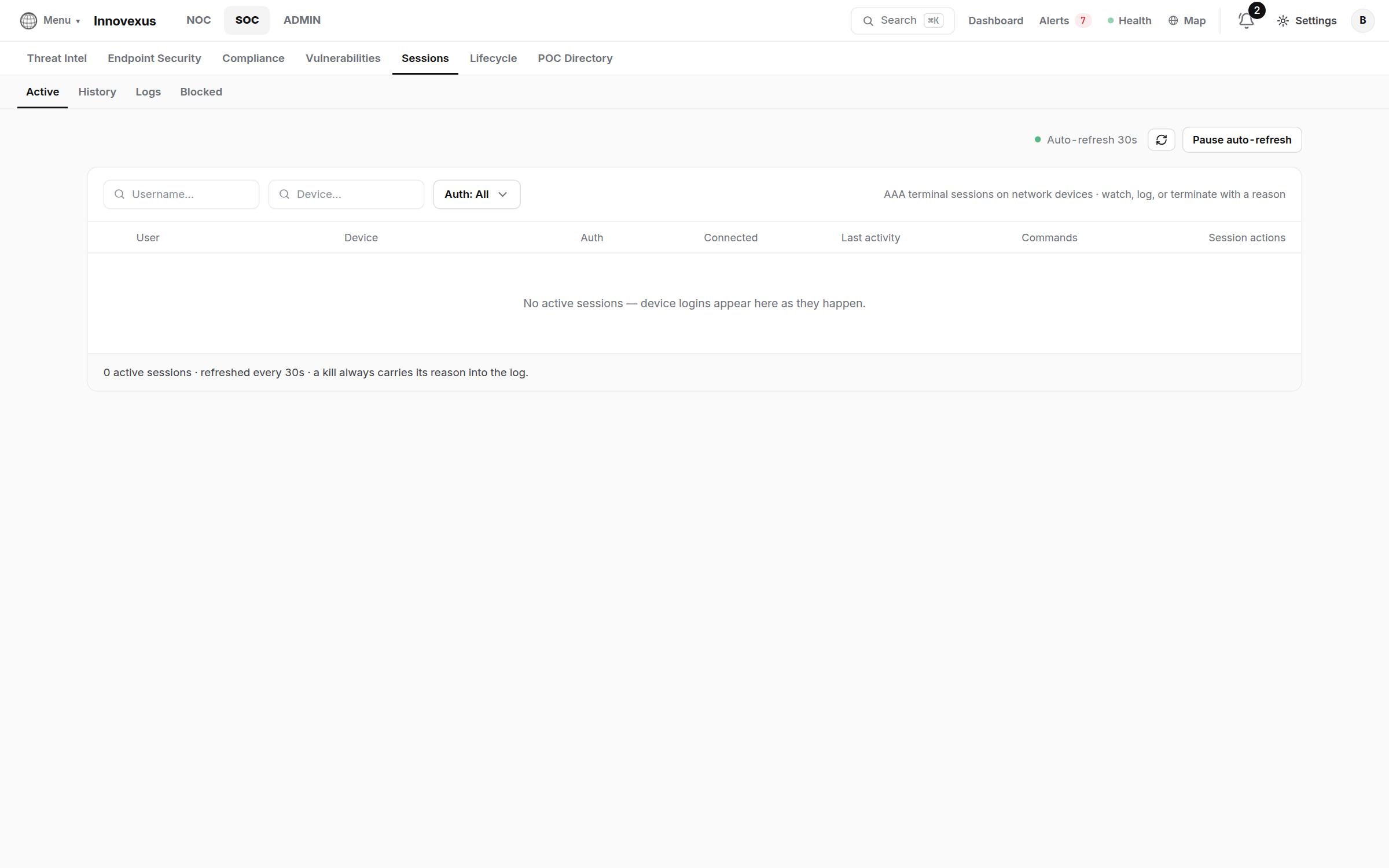
Every terminal session brokered by the appliance is visible here live, with full history and logs. A SOC operator can:
- Watch a session’s terminal as it happens;
- Terminate it — the operator on the other end is told the SOC ended the session, and the event is recorded;
- Block a user from opening new sessions (Blocked Users).
6 · Collectors: syslog & flows
Two collectors turn raw network exhaust into searchable evidence. Both are fed by one-line device changes (details and more snippets in the NOC guide):
! Cisco IOS — send syslog to the appliance (UDP 514)
logging host <appliance-ip>- Threat Intel → Syslog Collector — full-text searchable store of device syslog; feeds config-event attribution too.
- Threat Intel → Flow Collection — flow telemetry pulled from device caches, matched continuously against the IOC threat list; quota and dump history under Settings → General.
7 · Lifecycle & the paperwork
- Lifecycle — end-of-life forecast per platform, a replacement pipeline, and the decommissioned list (device deletion scrubs its secrets and pins; history is kept).
- POC Directory — who to call per site and vendor, kept where the on-call person is already looking.